



In today's fast-paced academic world, the right digital tools can make all the difference between organized success and scattered stress. From capturing lecture insights to organizing complex research projects, the best note taking app for students acts as a personal academic hub. But with countless options available, how do you choose the one that fits your specific needs? Whether you're a STEM major needing complex formula support, a humanities student organizing research, or a visual learner who thrives on mind maps and sketches, the ideal choice varies.
This comprehensive guide cuts through the noise. We will explore 12 of the most powerful and popular note-taking platforms, providing a detailed analysis of their core features, student-specific benefits, and honest limitations. We'll examine everything from handwriting and PDF annotation to collaboration tools and offline access, ensuring you have the full picture. For those specifically seeking digital notebooks optimized for the Apple ecosystem, exploring the best note-taking apps for Mac can provide tailored recommendations.
Our goal is to equip you with the insights needed to select a tool that not only captures your notes but enhances your entire learning process. Each review includes screenshots, direct links, and a clear breakdown of pros and cons, helping you find a digital notebook to study smarter, not just harder. Forget wading through marketing copy; this is a practical resource designed to help you make an informed decision and reclaim control over your academic workflow.
1. Notion
Notion transcends simple note-taking, functioning as an all-in-one workspace where you can manage your entire academic life. It stands out by combining notes, tasks, wikis, and databases into a single, highly customizable platform. This structure makes Notion one of the best note taking apps for students who need to organize complex subjects, track assignment deadlines, and build a personal knowledge base.
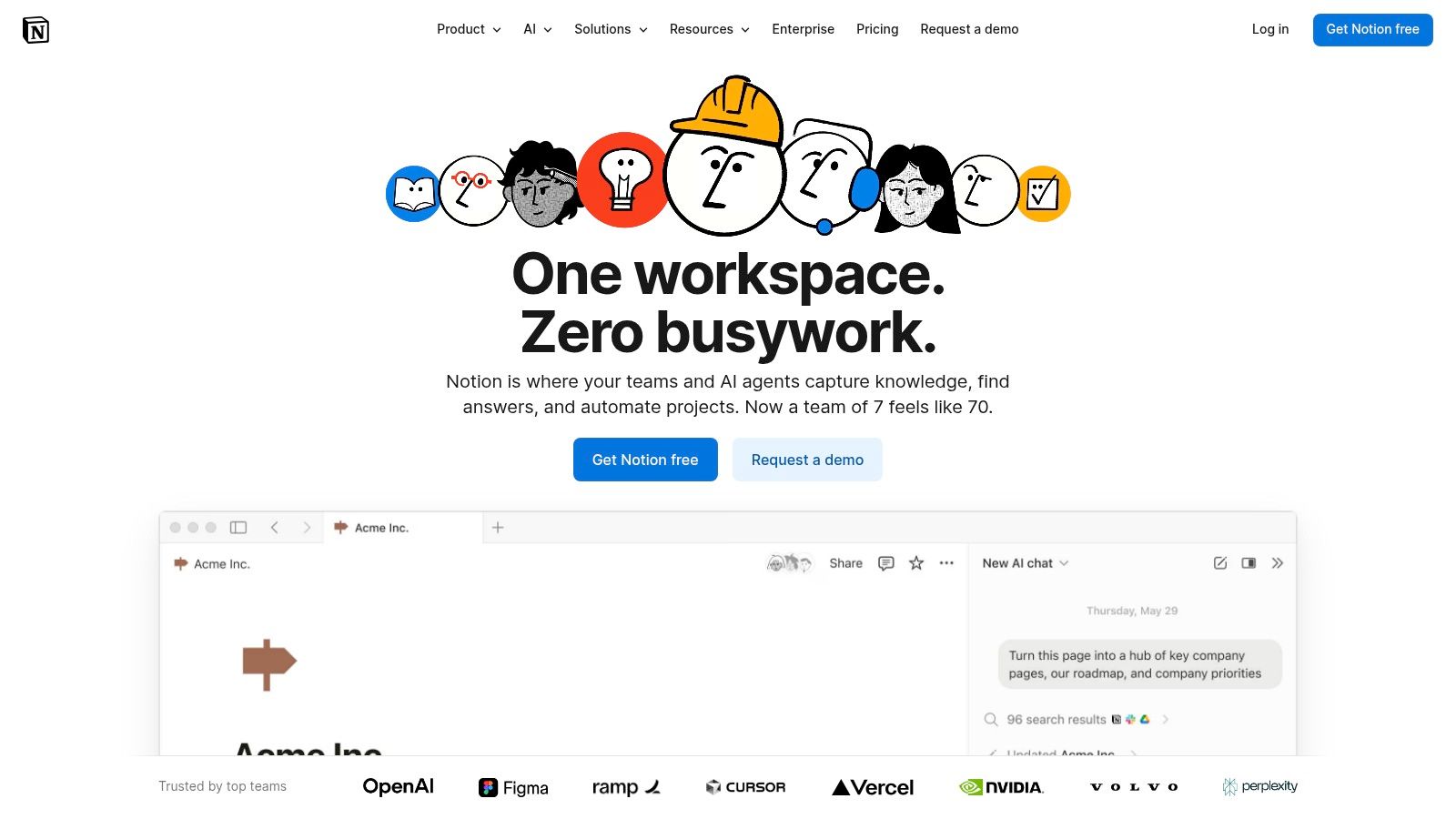
Its block-based editor allows for rich, dynamic pages where you can embed anything from lecture slides to YouTube videos. The true power lies in its database functionality, which lets you create interconnected tables for lecture notes, reading lists, and project timelines.
Key Features and Use Cases
- Databases & Views: Create a master "Assignments" database and view it as a calendar, a to-do list, or a Kanban board. Link your "Class Notes" database directly to your "Syllabus" database for seamless organization.
- Templates: Start quickly with pre-built templates for class notes, course syllabi, and reading lists. The vast student community constantly shares new, innovative templates online.
- Collaboration: Share pages with classmates for group projects, add comments, and mention team members to assign tasks. It’s ideal for collaborative research and study group organization.
Pricing and Accessibility
Notion offers a generous free plan for personal use. However, its major draw for academics is the free Plus Plan for students and educators. By signing up with a valid .edu email address, you unlock unlimited blocks, file uploads, and a 30-day version history for your personal workspace.
Pro-Tip: Enhance your academic writing within Notion by integrating a grammar checker. Tools like Grammarly can work alongside your notes to ensure clarity and professionalism in your assignments, and you can often find a Grammarly student discount to make it even more accessible.
| Pros | Cons |
|---|---|
| Immensely powerful and flexible | Can have a steep learning curve |
| Free Plus Plan for students | Offline mode is limited |
| Excellent for organizing entire courses | Can feel slow to load at times |
| Strong community and template support | Overkill for very simple notes |
2. Microsoft OneNote (Microsoft 365)
Microsoft OneNote offers a digital notebook experience that closely mimics a physical one, but with unlimited space and powerful digital tools. It organizes notes into notebooks, sections, and pages, creating a familiar structure that’s easy to navigate. This makes OneNote one of the best note taking apps for students who prefer a freeform, canvas-like environment, especially those who use a stylus for handwriting and diagramming.
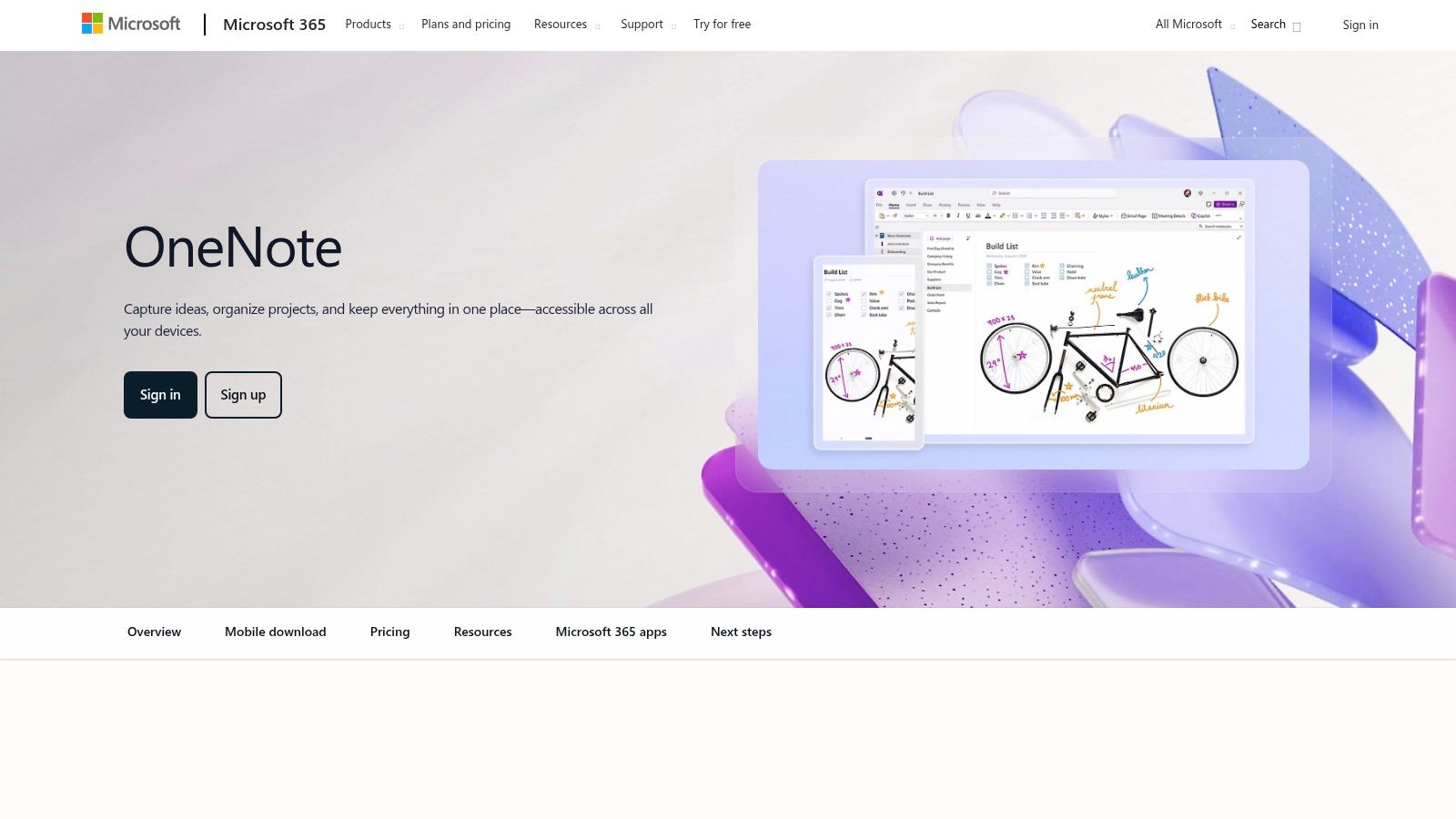
Its deep integration with the Microsoft 365 ecosystem is a key advantage. You can easily insert Word documents, embed PowerPoint slides directly into your notes, and sync everything seamlessly via OneDrive. For students already using Microsoft products for their schoolwork, OneNote fits perfectly into their existing workflow.
Key Features and Use Cases
- Infinite Canvas & Inking: Sketch diagrams, solve math equations by hand, and annotate lecture slides with a stylus. The flexible canvas lets you place text, images, and drawings anywhere on the page.
- Microsoft 365 Integration: Embed content from other Office apps and leverage Class Notebook features in educational settings for assignments and teacher feedback.
- Audio Recording & Transcription: Record lectures directly within OneNote and have the audio sync with your typed or handwritten notes. Some versions offer transcription services to convert speech to text.
Pricing and Accessibility
OneNote is completely free to use across all its platforms, with notes stored in your free OneDrive account. Students and educators often get access to the full Microsoft 365 suite, including premium versions of Word, Excel, and PowerPoint, for free through their institution, which enhances the OneNote experience.
Pro-Tip: Make your study notes more visually engaging by creating custom graphics and diagrams. You can often get a Canva student discount to access Pro features, then export your designs and add them directly into your OneNote pages to illustrate complex concepts.
| Pros | Cons |
|---|---|
| Completely free with generous features | Syncing can sometimes be slow with large notebooks |
| Excellent for stylus and handwriting | The interface can feel less modern than competitors |
| Deep integration with Microsoft 365 | Advanced AI features require a paid Microsoft 365 subscription |
| Strong cross-platform support | Page structure is less flexible than block-based editors |
3. Evernote
Evernote is a veteran in the digital note-taking space, functioning like a versatile digital filing cabinet perfect for students who need to capture information from various sources. It excels at collecting and organizing everything from typed lecture notes and web clippings to handwritten scribbles and scanned documents. Its robust search capabilities make it one of the best note taking apps for students in research-heavy fields.
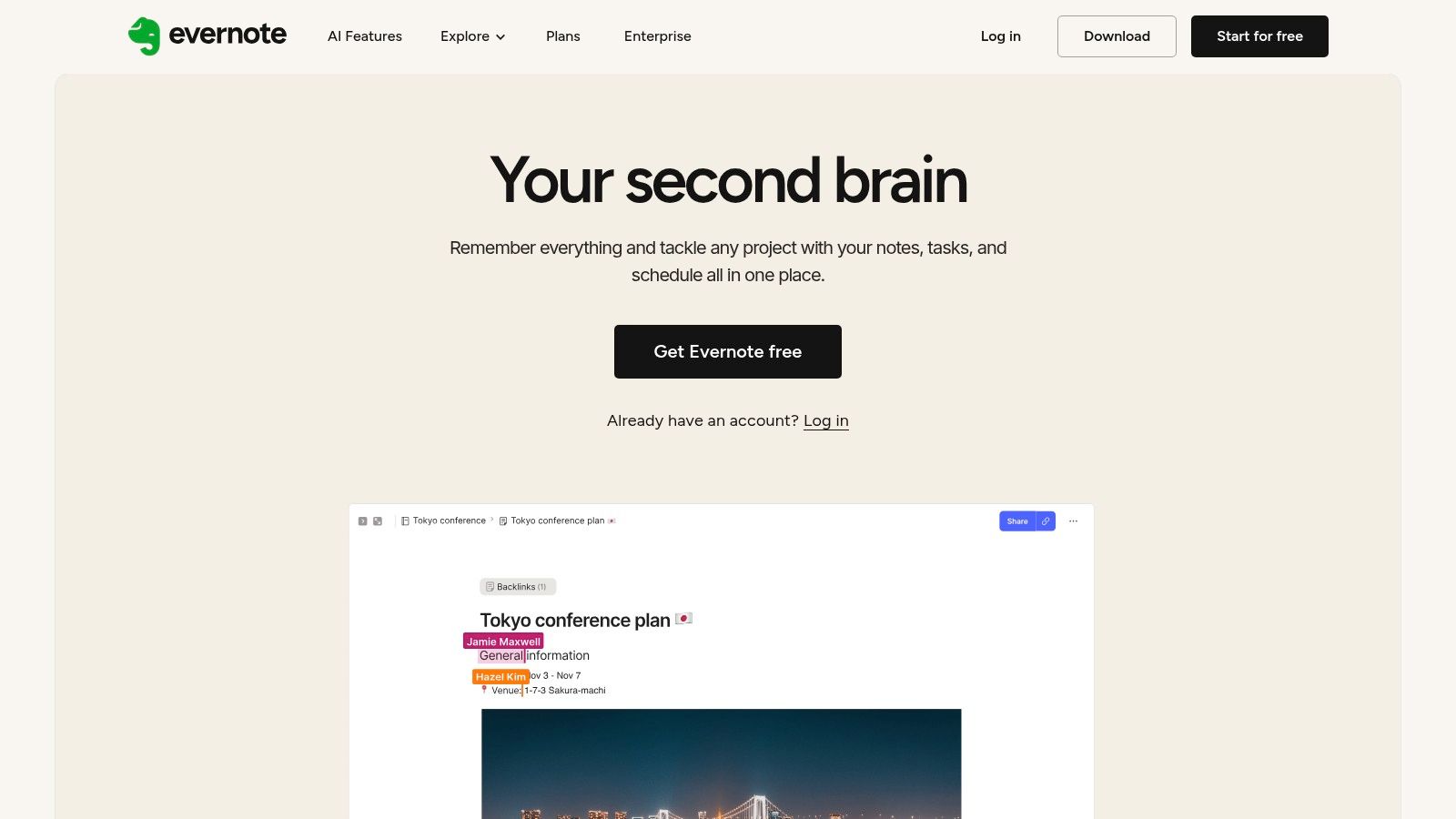
The platform is built around notes that can be sorted into notebooks and further organized with tags, creating a flexible system for any subject. Recent updates have introduced AI-powered features like AI Search and collaborative editing, keeping it competitive and enhancing its utility for group projects and study sessions.
Key Features and Use Cases
- Web Clipper: Save articles, web pages, and PDFs directly from your browser into your notebooks. This is invaluable for gathering sources for essays and research papers.
- Document & PDF Scanning: Use your phone’s camera to digitize lecture handouts, textbook pages, and whiteboard notes. Evernote’s OCR makes the text within these images and PDFs searchable.
- Powerful Search & Organization: Find anything quickly with advanced search operators, tags, and AI-powered search that understands natural language queries.
- Templates: Use pre-built templates for class schedules, lecture notes, and project planners to structure your academic work efficiently.
Pricing and Accessibility
Evernote offers a limited free plan, but students will need a paid plan to unlock its most powerful features like unlimited devices, larger note sizes, and offline access. The Personal plan is the most common starting point. Students should check Evernote's website for any available educational discounts, which are sometimes offered.
Pro-Tip: Pair Evernote's research-gathering power with a digital textbook library. Using a Perlego student discount gives you access to thousands of academic texts, which you can then clip and organize directly within your Evernote notebooks for a streamlined workflow.
| Pros | Cons |
|---|---|
| Excellent for mixed-media notes (text, PDF, audio) | Free version is quite restrictive |
| Powerful search, including text in images/PDFs | Paid plans can be more expensive than rivals |
| Superb web clipper for research | Newer AI features are still evolving |
| Mature and reliable cross-platform sync | Interface can feel dated to some users |
4. GoodNotes
GoodNotes has become the gold standard for students who prefer to handwrite their notes digitally. It masterfully replicates the pen-on-paper experience, especially on an iPad with an Apple Pencil, making it an exceptional choice for visual learners, STEM majors, and anyone who thinks best while scribbling. The app transforms your tablet into an infinite digital notebook, perfect for annotating PDFs, sketching diagrams, and solving complex equations.
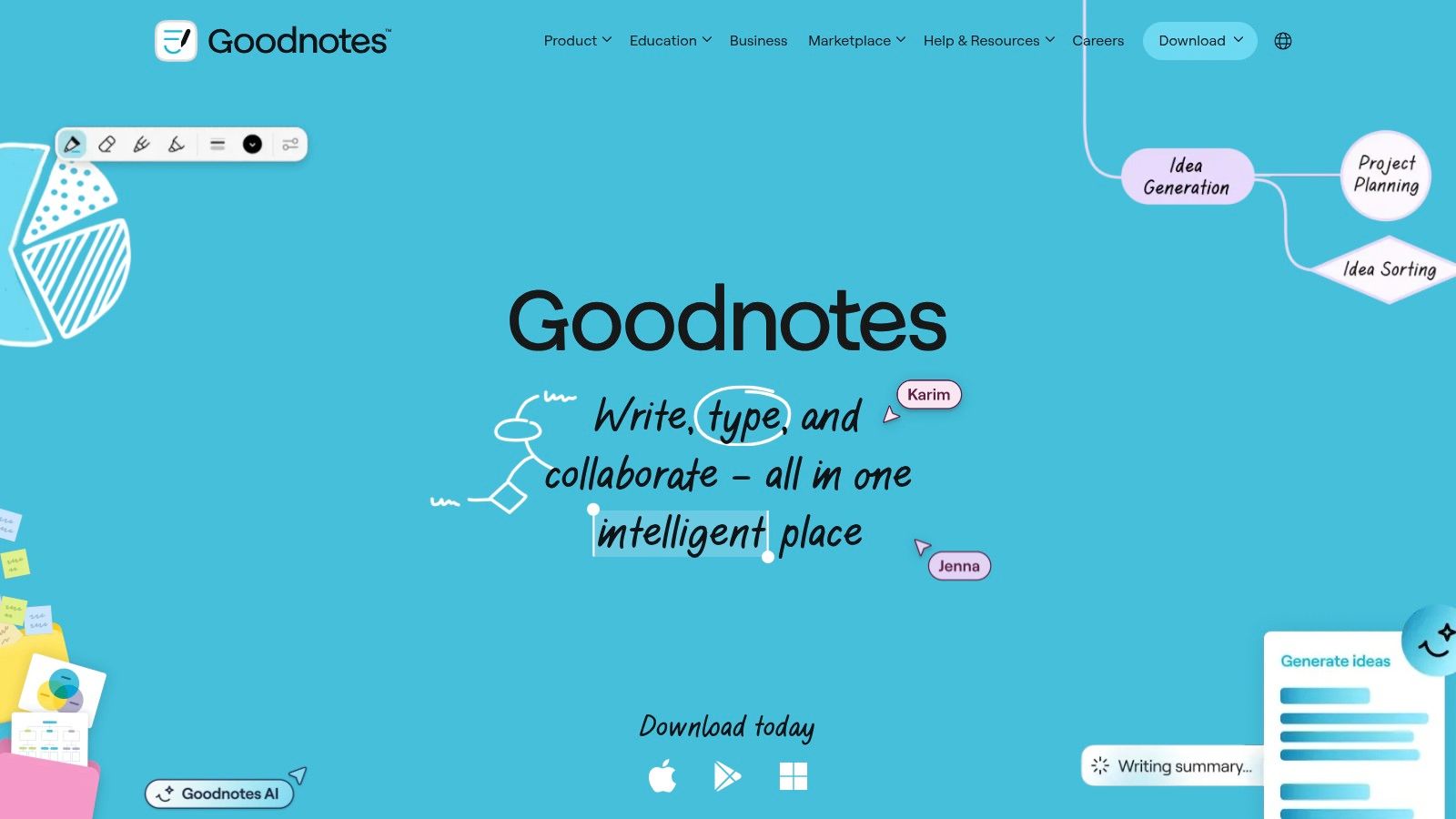
Its strength lies in its fluid and responsive inking technology. Features like shape recognition, a versatile lasso tool, and the ability to convert handwriting to text make organizing and searching your notes effortless. This makes it one of the best note taking apps for students who need to capture detailed lecture notes without sacrificing the benefits of digital organization.
Key Features and Use Cases
- Natural Handwriting & Math Conversion: Experience best-in-class digital inking for drawing diagrams, annotating slides, and writing equations. The app can even convert handwritten math formulas into perfectly typed text.
- Audio Recording & Transcription: Record lectures while you write. GoodNotes syncs the audio to your notes, allowing you to tap on a word and hear what was said at that exact moment.
- AI-Powered Study Tools: Use AI features to quiz yourself on your notes, get summaries of long documents, and check your work on math problems, turning your notes into interactive study guides.
Pricing and Accessibility
GoodNotes offers a free version with a limit of three notebooks. To unlock its full potential, students can opt for a yearly subscription or a one-time purchase. The pricing is platform-specific, but it represents a strong value for the features provided, especially for Apple users. Cross-platform sync is available for iOS, Android, and Windows.
Pro-Tip: Use the custom templates feature to create your own planner pages or specialized Cornell notes layouts. You can import any PDF to use as a background, tailoring GoodNotes perfectly to your study method.
| Pros | Cons |
|---|---|
| Industry-leading handwriting experience | Some advanced AI features are iOS-first |
| Powerful PDF annotation and organization | Subscription required for full cross-platform sync |
| Audio recording synced with notes | Android/Windows versions are still catching up to iOS |
| One-time purchase option available on Apple | Math conversion is an AI-powered add-on |
5. Notability
Notability is a powerhouse for students who prefer handwritten notes, especially on an iPad. It excels at capturing the complete lecture experience by seamlessly syncing audio recordings with your handwritten or typed notes. This unique playback feature lets you tap on a word or sketch to hear exactly what was being said at that moment, making it one of the best note taking apps for students who need to review complex lectures in context.
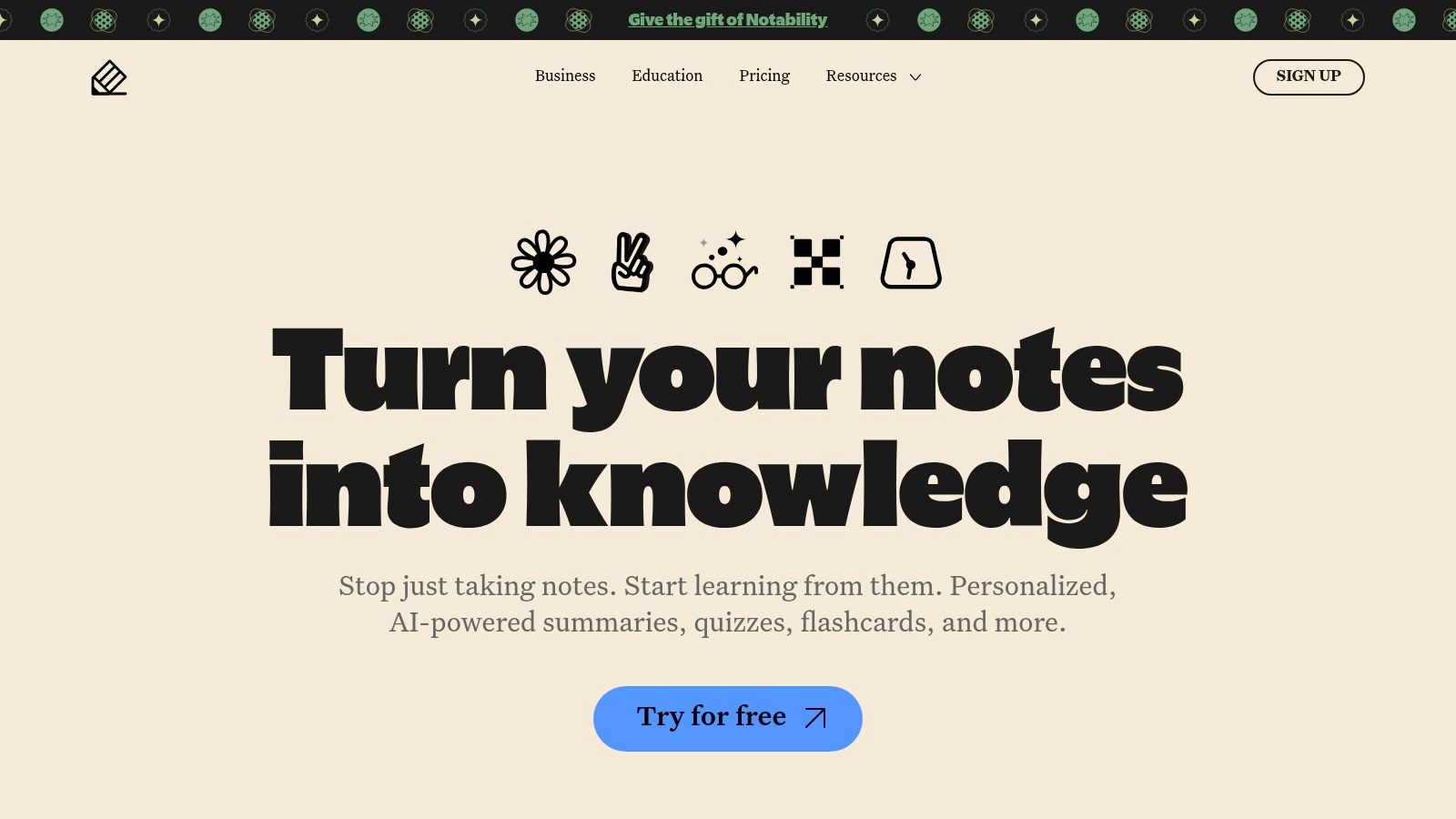
While traditionally iOS-centric, the introduction of Notability Cloud is expanding access to web and other platforms. The app's strength lies in its intuitive interface that combines drawing, handwriting, and audio recording with robust PDF annotation, making it perfect for marking up lecture slides or digital textbooks.
Key Features and Use Cases
- Audio-Synced Notes: Record lectures while you write. During playback, your notes animate in real-time with the audio, providing crucial context for revision.
- AI Study Tools: Notability now offers AI-powered features to summarize your lecture notes, generate quizzes from your material, and create flashcards, turning your notes into active study sessions.
- PDF Markup & Templates: Directly import and annotate lecture slides, research papers, and assignments. Use a variety of built-in templates like graph paper or Cornell notes to structure your thinking.
Pricing and Accessibility
Notability offers a free version with limited features and editing caps. The full experience is unlocked with a Notability Plus subscription, which is an annual plan that grants access to unlimited editing, AI features, auto-backup, and more. Pricing can vary by region and is handled through in-app purchases on the App Store.
Pro-Tip: Use Notability's split-screen functionality on the iPad. You can have your lecture slides open in one window and a blank note in another, allowing you to annotate the PDF and take supplementary notes simultaneously without switching apps.
| Pros | Cons |
|---|---|
| Industry-leading audio-sync feature | Most powerful features require a subscription |
| Simple, intuitive user interface | AI features have usage limits even for subscribers |
| Excellent PDF annotation tools | Historically Apple-ecosystem focused |
| New AI tools are great for revision | Pricing can vary and is subscription-based |
6. Obsidian
Obsidian positions itself as a "second brain," a powerful, local-first knowledge base perfect for students who want to build a lasting and interconnected web of notes. Unlike cloud-based apps, your data is stored as plain Markdown files directly on your device, giving you complete ownership and privacy. This makes Obsidian one of the best note taking apps for students engaged in long-term research or thesis work, ensuring their notes remain accessible for years.
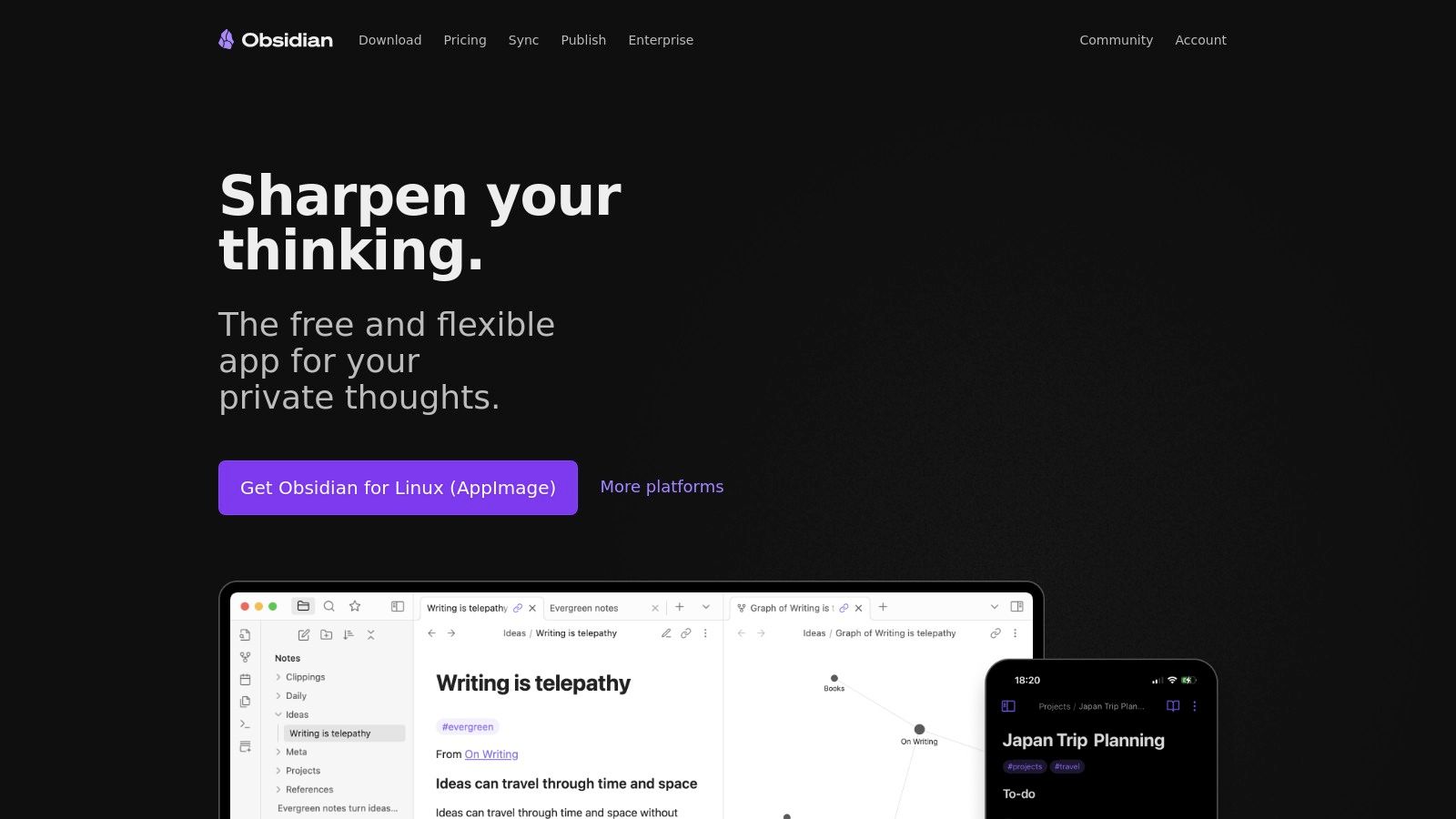
Its core strength lies in its ability to connect ideas. By creating links between notes, you build a network of knowledge that can be visualized in the stunning Graph View. This helps you uncover hidden relationships between different lectures, readings, and research topics, fostering a deeper understanding of your subjects.
Key Features and Use Cases
- Graph View & Backlinking: Visually map the connections between your notes. See which concepts are central to your studies and discover how a topic from one class relates to another.
- Local-First & Markdown: Your notes are future-proof and private. Since they are plain text files, you can access and edit them with any text editor, even without Obsidian.
- Community Plugins: Tailor Obsidian to your exact needs with hundreds of free plugins. Add features like Kanban boards, calendars, PDF highlighters, and flashcard systems (Spaced Repetition).
Pricing and Accessibility
Obsidian's core app is completely free for personal and educational use. Its optional paid services provide enhanced functionality. Obsidian Sync offers end-to-end encrypted synchronization across your devices, while Obsidian Publish lets you share selected notes as a public website. Educational and non-profit discounts are available for these paid services.
Pro-Tip: Leverage the Canvas plugin for a free-form, visual thinking space. You can map out essay structures, create mind maps for revision, and visually organize research materials by dragging notes, images, and web links onto an infinite board.
| Pros | Cons |
|---|---|
| Privacy-focused and offline-first | Steep learning curve for beginners |
| Highly customizable with plugins | Collaboration is not built-in |
| Core app is completely free | Syncing across devices is a paid add-on |
| Powerful for building connected knowledge | Can feel less polished than competitors |
7. Bear
Bear is a beautifully designed, minimalist note-taking app that prioritizes speed and simplicity, making it a fantastic choice for students within the Apple ecosystem. It offers a clean, distraction-free writing environment built around Markdown, allowing for elegant formatting without complex menus. Its unique strength lies in its tag-based organization system, which provides a flexible alternative to traditional folders for categorizing lecture notes, research, and personal thoughts.
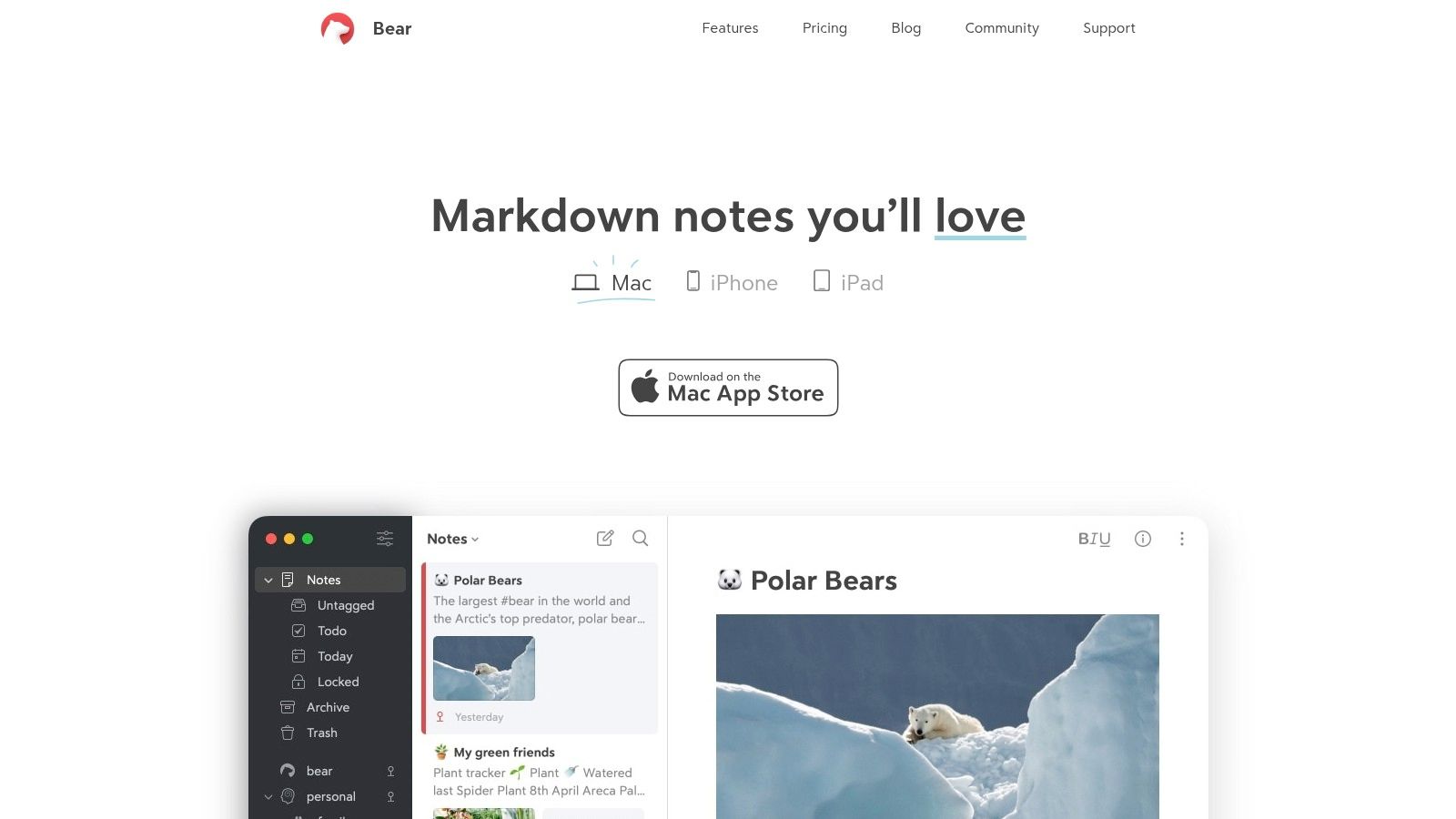
Unlike more complex platforms, Bear focuses on the core writing experience. It’s perfect for quickly capturing ideas during a lecture or drafting an essay on an iPad, iPhone, or Mac. The fluid and responsive interface makes it one of the best note taking apps for students who value aesthetics and efficiency over endless features.
Key Features and Use Cases
- Tag-Based Organization: Use nested tags like
#psych101/lecturesor#research/sourcesto create a fluid, powerful organizational structure that’s more flexible than rigid folders. - Markdown Support: Write and format notes quickly using Markdown syntax. It’s perfect for students in technical fields who need to include code snippets in their notes.
- Export Options: Easily export your notes to various formats, including PDF, DOCX, and JPG, making it simple to submit assignments or share materials with others.
- Focus Mode: For deep work sessions, Focus Mode hides everything but the text you're working on, helping you concentrate on your writing without distractions.
Pricing and Accessibility
Bear's core features are available for free on individual Apple devices. To unlock its full potential, including cross-device syncing via iCloud, advanced export options, and beautiful themes, you need a Bear Pro subscription. The Pro plan is very affordable at $2.99 per month or $29.99 per year, with a free trial available.
Pro-Tip: Use Bear’s browser extension to quickly clip articles and web content for your research papers. The extension automatically formats the clipped content in Markdown and lets you add relevant tags on the fly, saving you valuable time.
| Pros | Cons |
|---|---|
| Beautiful, distraction-free interface | Apple ecosystem only (no Windows/Android) |
| Fast and lightweight performance | Lacks advanced collaboration features |
| Powerful and flexible tagging system | No table support within notes |
| Affordable Pro subscription | Limited PDF annotation capabilities |
8. Simplenote
For students who find feature-rich applications distracting, Simplenote offers a refreshing, back-to-basics approach. Developed by Automattic (the company behind WordPress.com), it is a completely free, lightweight, and clean space for your thoughts. It excels at capturing quick text notes, drafting essays, or managing simple to-do lists without any friction, making it one of the best note taking apps for students who prioritize speed and simplicity over complex features.
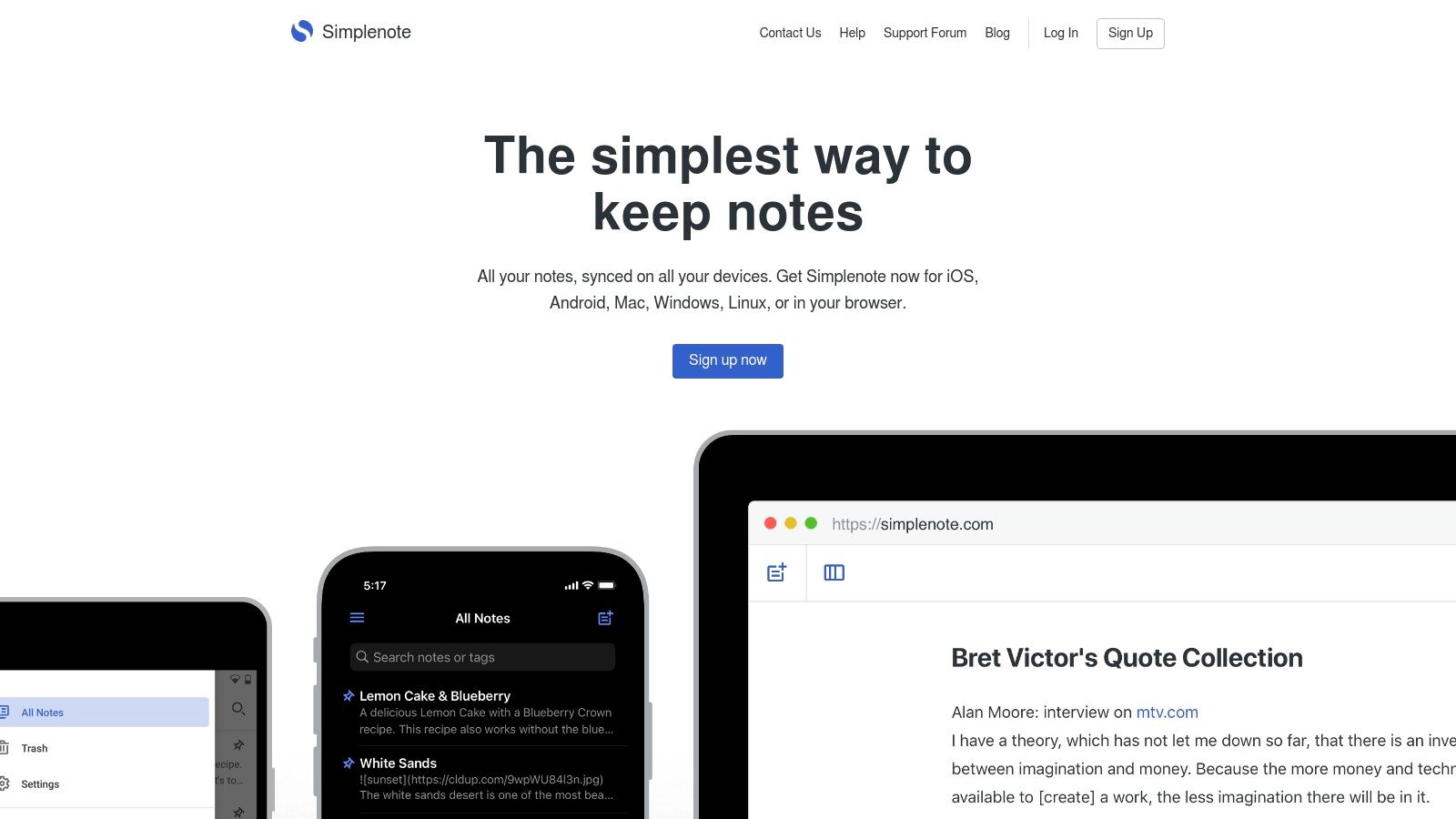
Its core philosophy is to get out of your way. The interface is minimal, focusing entirely on your text. Organization is handled through a simple but effective tagging system rather than complex notebooks or folders, and its real-time sync is exceptionally fast across all its native apps.
Key Features and Use Cases
- Cross-Platform Sync: With apps for iOS, Android, Windows, macOS, and Linux, your notes are always available and instantly synced wherever you are.
- Markdown Support: Format your notes with headers, lists, and links using simple Markdown syntax, which is great for structuring lecture outlines or drafting assignments.
- Collaboration & Publishing: Share a link to your note to collaborate with a classmate in real-time or publish it directly to the web as a clean, public page. It's perfect for sharing quick study guides.
- Version History: Accidentally delete a paragraph? Simplenote’s history slider lets you easily review and restore previous versions of your notes, which is a lifesaver during revision sessions.
Pricing and Accessibility
Simplenote is completely free, with no premium tiers, advertisements, or hidden costs. All features, including sync, sharing, and version history, are available to every user without limitation. This makes it an incredibly accessible and risk-free choice for any student on a tight budget.
Pro-Tip: Use tags like
#Psych101,#ExamPrep, or#ToDoto create a simple, filterable organization system. You can quickly search fortag:ExamPrepto pull up all your relevant revision notes without navigating a complicated folder structure.
| Pros | Cons |
|---|---|
| Entirely free with no upsells | Lacks advanced features like PDF annotation |
| Extremely fast and lightweight | No rich text formatting or image support |
| Excellent cross-platform availability | Occasional community reports of sync issues |
| Minimalist interface is distraction-free | Not suitable for complex project management |
9. Nebo
Nebo is engineered for students who prefer the tactile experience of handwriting but need the power and flexibility of digital text. It excels with its industry-leading handwriting recognition technology, MyScript Interactive Ink, which can instantly convert handwritten notes, mathematical equations, and even diagrams into clean, editable digital content. This makes it an exceptional note taking app for students in STEM fields or any subject requiring complex notations.
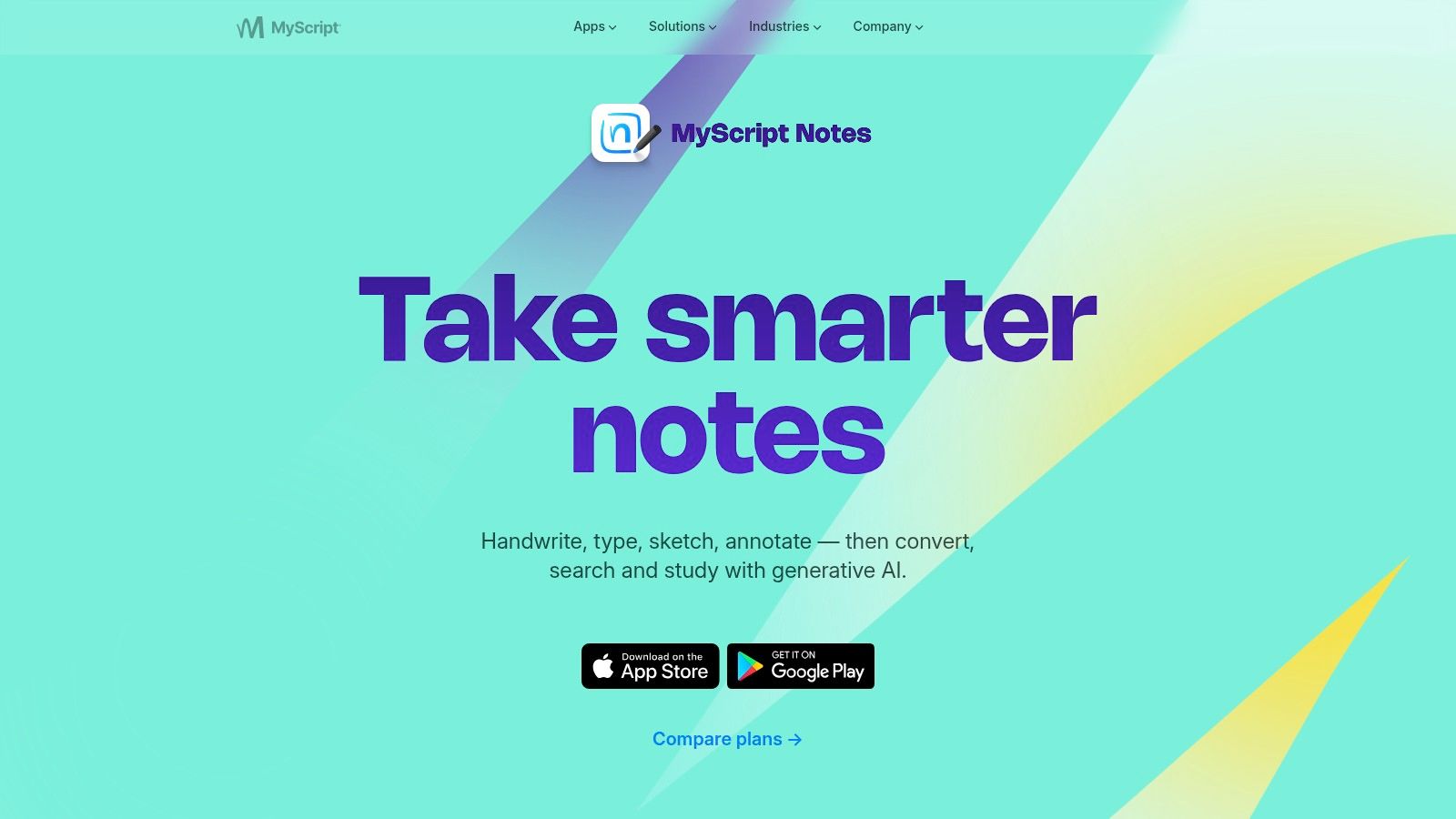
Unlike other apps where ink is static, Nebo treats your handwriting as a dynamic element. You can easily erase words or characters by scratching them out, insert space between letters, and reformat paragraphs with simple gestures. This seamless interaction between pen and digital document is what sets Nebo apart for lecture notes and problem-solving sessions.
Key Features and Use Cases
- Interactive Ink: Write complex formulas and have Nebo solve them or convert them to LaTeX. Draw a diagram, and it will be converted into perfect, editable shapes.
- PDF Annotation: Import lecture slides or research papers as PDFs, mark them up with your stylus, and export your annotations as part of the document.
- Infinite Canvas & Notebooks: Use a freeform canvas for brainstorming sessions or structured notebooks for class notes. You can then copy and paste your converted content into a standard page.
- Offline-First Pen Input: Your notes are always available on your device, making it reliable for lectures in halls with spotty Wi-Fi.
Pricing and Accessibility
Nebo offers a free plan that provides a limited number of notebooks, which is useful for trying out the core features. To unlock unlimited notebooks and advanced features like PDF import and cloud sync, you need to purchase the full version. The pricing and licensing can vary significantly depending on the platform (iOS, Android, Windows), which can sometimes be confusing for users.
Pro-Tip: Use Nebo's "Convert" feature to turn your handwritten lecture notes into a searchable text document. You can then export this text to a study app like Anki or Quizlet to create flashcards, streamlining your revision process.
| Pros | Cons |
|---|---|
| Unparalleled handwriting-to-text conversion | Pricing and features can be inconsistent across different platforms |
| Excellent for math, chemistry, and technical diagrams | Recent shifts to subscription models have confused some long-time users |
| Strong offline capabilities | Free version is quite limited in page count |
| Intuitive gesture controls for editing handwritten notes | Less robust for keyboard-only note-taking compared to competitors |
10. Zoho Notebook
Zoho Notebook offers a visually appealing, card-based approach to note-taking that prioritizes simplicity and privacy. It treats every piece of information as a distinct "Note Card," which can be a text note, checklist, audio recording, photo, or scanned document. This design makes it a solid choice for students who prefer a colorful, scrapbook-style method of organizing their thoughts and lecture materials across multiple devices.
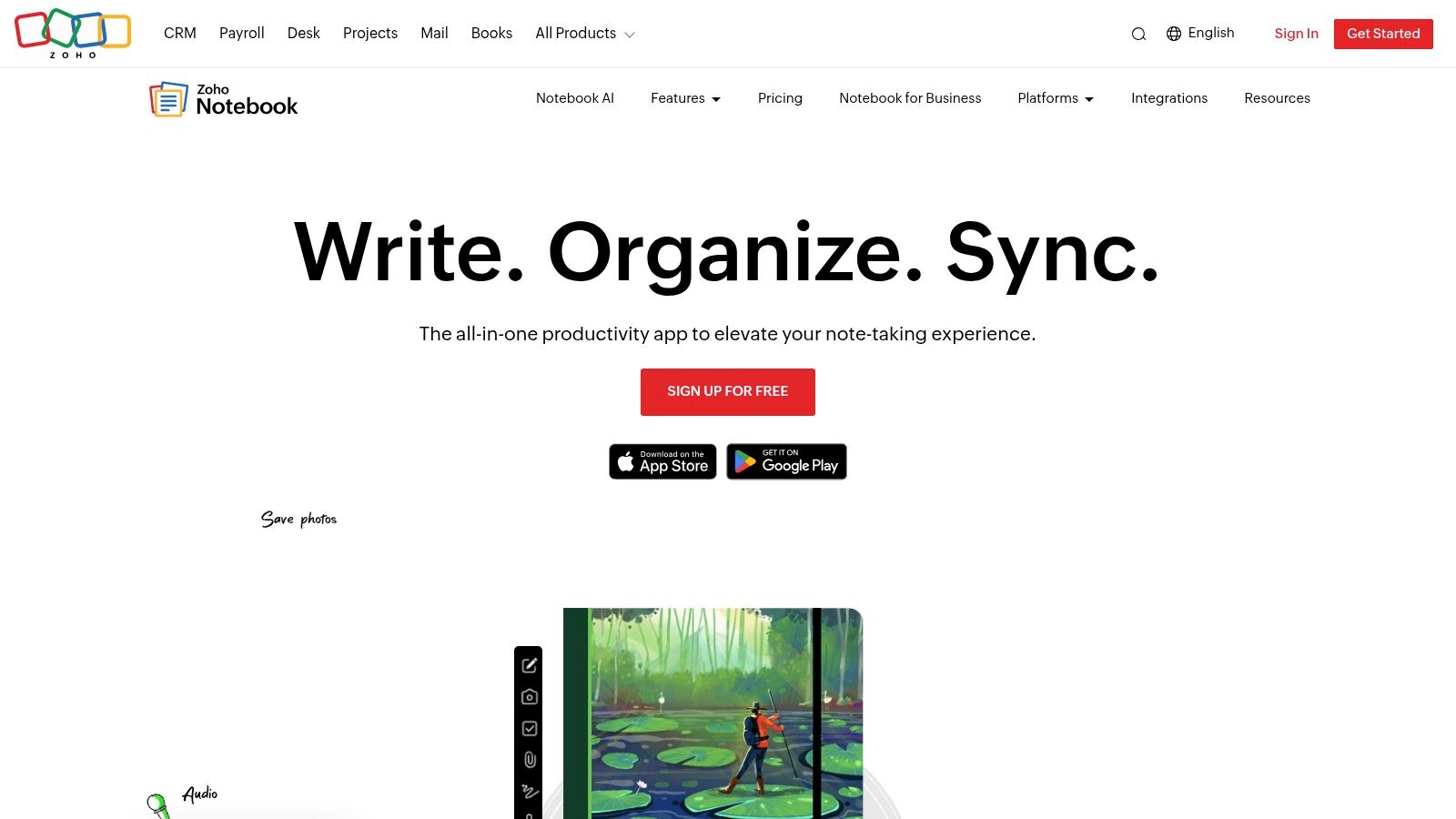
Unlike many competitors, Zoho Notebook is part of a larger ecosystem of business apps but maintains a strong ad-free, privacy-focused stance for its free version. The app allows you to group different note cards into notebooks, color-code them, and secure your notes with passcodes or biometrics, ensuring your academic work remains private.
Key Features and Use Cases
- Note Cards: Create specialized cards for different types of content. Use the Audio Card to record a lecture snippet, the Sketch Card for quick diagrams, and the File Card to attach lecture slides.
- Web Clipper & OCR: Save articles or research material directly from the web. The built-in OCR (Optical Character Recognition) can search for text within images and scanned documents, making it easier to find key terms in your notes.
- Cross-Platform Sync: Start a note on your laptop during class and review it on your phone or tablet while commuting. All notes are synced seamlessly across your devices.
Pricing and Accessibility
Zoho Notebook has a very generous free plan that is ad-free and includes most core features and device sync. The paid Pro and Business tiers add more storage, larger file uploads, Kanban-style note boards, and AI-powered features. Pricing and currencies can vary by region, so it's best to confirm the current U.S. pricing within the app.
Pro-Tip: Use the color-coding feature to assign a specific color to each of your courses. This visual distinction helps you quickly identify and access the right notebook when you're preparing for different classes or exams.
| Pros | Cons |
|---|---|
| Generous ad-free plan | Some advanced features require Pro/Business tiers |
| Strong cross-platform coverage | Pricing pages and currencies vary by region |
| Visually organized card-based system | Not as powerful for complex databases as Notion |
| Privacy-focused with no data scanning | Collaboration features are less robust |
11. Joplin (and Joplin Cloud)
Joplin is an open-source note-taking app that prioritizes user privacy, data ownership, and offline access. It uses Markdown for formatting notes and offers robust organization through notebooks and tags, making it a powerful choice for students who value security and control over their data. As a free and offline-first application, Joplin ensures your notes are always accessible on your device, regardless of internet connectivity.
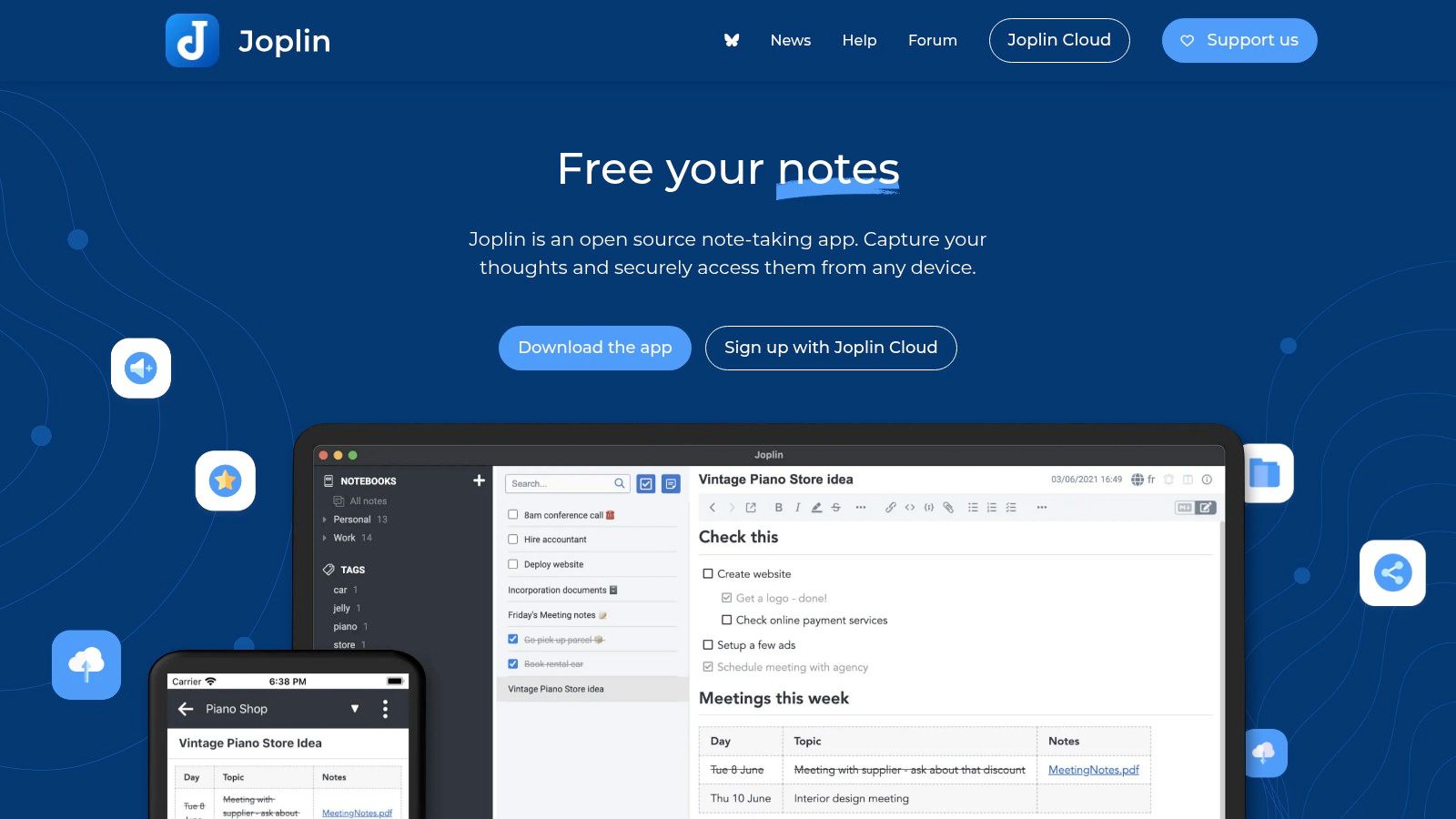
While the core app is free, it allows you to sync your notes across devices using third-party cloud services like Dropbox or OneDrive. For a more seamless experience, the optional paid Joplin Cloud service adds easy synchronization, a web-based version of the app, and collaboration features for group projects. Its commitment to privacy with end-to-end encryption makes it one of the best note taking apps for students handling sensitive research data.
Key Features and Use Cases
- Offline-First & Markdown: Write and access all your notes locally without needing an internet connection. The Markdown editor is perfect for technical students or those who prefer a clean, keyboard-centric writing experience.
- Web Clipper: Save web pages or portions of articles directly from your browser to your notebooks for research. The clipper can save pages as simplified Markdown, a full webpage, or just a screenshot.
- Synchronization Options: Sync for free using your own cloud service (like OneDrive or Dropbox) or subscribe to Joplin Cloud for a hassle-free, dedicated sync solution with added collaboration capabilities.
- Extensibility: Customize your experience with a wide range of community-built plugins and themes, adding features like templates, spell checkers, and calendar integration.
Pricing and Accessibility
The Joplin application itself is completely free and open-source. For students and educators needing the convenience of dedicated sync and collaboration, Joplin Cloud offers a significant 50% discount through its student/teacher program. This makes the premium features highly affordable for academic users.
Pro-Tip: Use Joplin's to-do feature within your notes to create checklists for assignment steps or research tasks. You can set alarms for these to-dos, turning your study notes into an actionable project plan directly within the app.
| Pros | Cons |
|---|---|
| Completely free and open-source | Initial sync setup can be more technical |
| Strong end-to-end encryption | Collaboration features require paid subscription |
| Offline-first functionality | Interface is more functional than polished |
| Generous 50% discount for students on Cloud | Markdown may have a learning curve for some |
12. Google Keep
Google Keep excels in its simplicity and speed, making it the perfect digital equivalent of a sticky note or pocket notebook. It’s designed for quick capture, allowing you to instantly jot down thoughts, create checklists for assignments, or save a picture of the whiteboard after a lecture. Its tight integration with the Google ecosystem makes it a fantastic, no-cost addition to any student's digital toolkit.
Unlike more complex systems, Keep prioritizes immediacy. You can capture ideas via text, voice recordings, hand-drawn sketches, or images, with Google’s powerful OCR technology making text within pictures searchable. For students already using Google Docs and Calendar, Keep acts as a seamless bridge for turning fleeting ideas into structured work.
Key Features and Use Cases
- Quick Capture & Organization: Use it to quickly save links for a research paper, create a to-do list for exam prep, or record a voice memo reminder. Color-coding and labels help keep your notes organized at a glance.
- Google Workspace Integration: Effortlessly send a Keep note directly to Google Docs to expand on a brief idea for an essay. You can also link notes to Google Calendar events for timely reminders.
- Real-Time Collaboration: Share a checklist with your study group for a project or a shopping list with roommates. Changes sync instantly across all devices, ensuring everyone is on the same page.
Pricing and Accessibility
Google Keep is completely free to use with any personal Google account. It is accessible via the web at keep.google.com and through dedicated mobile apps for iOS and Android, with all notes syncing automatically across platforms.
Pro-Tip: Use the image-to-text (OCR) feature to digitize your handwritten notes or excerpts from textbooks. Just snap a photo, and Keep will transcribe the text, making it searchable and easy to copy into your formal study documents.
| Pros | Cons |
|---|---|
| Completely free and incredibly fast for quick captures | Lacks advanced organizational tools like notebooks or folders |
| Seamless integration with Google Docs, Drive, and Calendar | Not ideal for long-form, structured lecture notes |
| Excellent cross-platform syncing and mobile apps | Lacks rich text formatting options like bold, italics, or headers |
| Powerful and reliable search, including text in images | Overly simplistic for complex project or research management |
Top 12 Student Note-Taking Apps Comparison
| App | Key features ✨ | UX / Quality ★ | Price & Value 💰 | Target 👥 | Best for / USP 🏆 |
|---|---|---|---|---|---|
| Notion | Databases, templates, embeds, real-time collab, version history | ★★★★☆ — structured & flexible | 💰 Free Plus for verified students; paid tiers for advanced | 👥 Project/class organizers, group work | 🏆 All-in-one workspace & campus templates |
| Microsoft OneNote | Infinite canvas, handwriting/inking, transcription, 365 integration | ★★★★☆ — great stylus support | 💰 Free core; Microsoft 365 for Copilot/AI | 👥 Microsoft 365 users & stylus note-takers | 🏆 Deep Office/Class Notebook integration |
| Evernote | Web clipper, powerful search, PDF/document capture, AI search | ★★★☆☆ — research-focused | 💰 Limited free; paid required for full features | 👥 Research-heavy students | 🏆 Web clipping & mixed-media capture |
| GoodNotes | Natural inking, handwriting→text, math conversion, audio recording | ★★★★★ — best-in-class inking | 💰 One-time iOS purchase or subscription options | 👥 iPad + Apple Pencil users, lecture notes | 🏆 Premium handwriting & math conversion |
| Notability | Handwriting + audio sync, live transcription, AI study tools, cloud | ★★★★☆ — simple record & review | 💰 Free tier; paid tiers/region pricing for AI/cloud | 👥 Lecture students who record & revise | 🏆 Audio-synced notes with AI study aids |
| Obsidian | Local Markdown, graph view, backlinks, plugins, optional Sync/Publish | ★★★★☆ — highly customizable | 💰 Free core; paid Sync/Publish services | 👥 Privacy-minded, long-term knowledge builders | 🏆 Local-first "second brain" with links |
| Bear | Markdown writing, tagging, themes, OCR (Pro), rich exports | ★★★★☆ — fast & elegant (Apple-only) | 💰 Free; Bear Pro affordable for Apple users | 👥 Apple ecosystem writers | 🏆 Clean Markdown UI & export options |
| Simplenote | Lightweight sync, tags, Markdown, version history | ★★★☆☆ — minimal & no-friction | 💰 Completely free | 👥 Quick lists & zero-friction users | 🏆 Simple, reliable, no-cost capture |
| Nebo | Advanced handwriting recognition, ink→text/math, offline pen input | ★★★★☆ — top ink recognition | 💰 Free limited plan; paid/licensing varies | 👥 STEM & technical note-takers | 🏆 Industry-leading math & ink conversion |
| Zoho Notebook | Card-style notes (text/audio/image/scan), OCR, web clipper, sync | ★★★★☆ — visual & privacy-focused | 💰 Generous free tier; Pro for AI/storage | 👥 Cross-platform & privacy-conscious students | 🏆 Free visual notes + privacy features |
| Joplin | Open-source Markdown, E2EE, web clipper, sync to many backends | ★★★☆☆ — powerful but DIY | 💰 Free core; Joplin Cloud paid (student discount) | 👥 Students valuing data ownership & open source | 🏆 Open-source + strong encryption |
| Google Keep | Quick capture (text/checklist/voice/image OCR), real-time collab | ★★★☆☆ — fast & lightweight | 💰 Free with Google account | 👥 Quick-capture users & Google Workspace students | 🏆 Instant notes & seamless Google integration |
Choosing Your Perfect Study Partner: Final Recommendations
We’ve navigated the digital landscape of modern study tools, analyzing everything from minimalist text editors to complex, all-in-one productivity hubs. The journey to find the best note taking app for students isn't about finding a single, universally perfect application. Instead, it’s about discovering the digital companion that aligns seamlessly with your personal learning style, academic needs, and technological ecosystem. The right tool should feel like an extension of your own mind, reducing friction and administrative overhead so you can focus on comprehension and critical thinking.
The sheer variety of options can feel overwhelming, but this diversity is also a significant advantage. It means there is a specialized solution tailored for nearly every type of student. Your final choice will ultimately depend on a self-assessment of your own habits and requirements. The ideal app for a STEM major annotating complex PDF diagrams will be vastly different from what a literature student needs to organize sprawling research notes and character analyses.
Recapping the Top Contenders for Your Needs
Let's distill our findings into actionable recommendations based on common student profiles and priorities. This summary should help you narrow down your options from the twelve applications we've reviewed.
- For the Ultimate Organizer and Planner: If you dream in databases and love building interconnected systems for your courses, assignments, and personal life, Notion is your undisputed champion. Its learning curve is an investment, but the payoff is a completely customized academic command center.
- For the Digital Handwriting Enthusiast: Students who learn best by writing things out by hand with a stylus should look no further than GoodNotes and Notability. GoodNotes excels in organization and creating digital notebooks that mimic physical ones, while Notability's superior audio recording sync makes it a lecture hall powerhouse. Nebo also deserves a special mention here for its best-in-class handwriting-to-text conversion.
- For the Cross-Platform Traditionalist: If you want a reliable, free, and feature-rich application that works everywhere, Microsoft OneNote is a fantastic choice. Its flexible canvas, deep integration with the Microsoft 365 suite, and robust free tier make it a safe and powerful bet for students in any discipline. Evernote remains a solid, if more premium, alternative in this category.
- For the Privacy-Conscious Future-Proofer: For those who prioritize data ownership and want a system that will last a lifetime, the offline-first, plain-text approach of Obsidian is unmatched. It empowers you to build a personal "second brain" that isn't locked into a proprietary ecosystem. Joplin offers a similar open-source, privacy-focused experience with the added convenience of a dedicated cloud sync service.
- For the Minimalist and Quick Capturer: If your primary need is simply a place to jot down quick thoughts, to-do lists, and reminders without any fuss, Google Keep and Simplenote are perfect. They are fast, free, and incredibly straightforward, ensuring you can capture an idea before it disappears.
Making Your Final Decision
Before you commit, take a moment to reflect on these critical implementation factors. The most feature-packed app is useless if it doesn’t fit your workflow.
- Identify Your Core Need: Are you primarily taking lecture notes, annotating research papers, collaborating on group projects, or building a long-term knowledge base? Your central use case should guide your choice.
- Test Drive Before You Buy: Almost every premium app on our list offers a free trial or a generous free tier. Install your top two or three contenders and use them for a full week. See which one feels most intuitive and genuinely enhances your study process.
- Consider Your Ecosystem: Ensure your chosen app has robust clients for all your devices, a laptop, a tablet, and a smartphone. Seamless, reliable sync is non-negotiable for a modern student workflow.
Ultimately, the best note-taking app for students is the one you consistently use. It’s the one that makes capturing information, organizing your thoughts, and reviewing material easier, not harder. Choose the tool that empowers you, start simple, and build your system over time. Your academic success is the real goal, and these applications are simply partners to help you achieve it.
Upgrading your digital toolkit is a smart move, but managing student expenses can be challenging. As you optimize your study habits with the perfect app, don't forget to optimize your budget. At Student Wow Deals, we've curated hundreds of exclusive discounts on software, tech, fashion, and more, specifically for students like you. Find an amazing deal and make your student life more affordable by visiting Student Wow Deals today.