


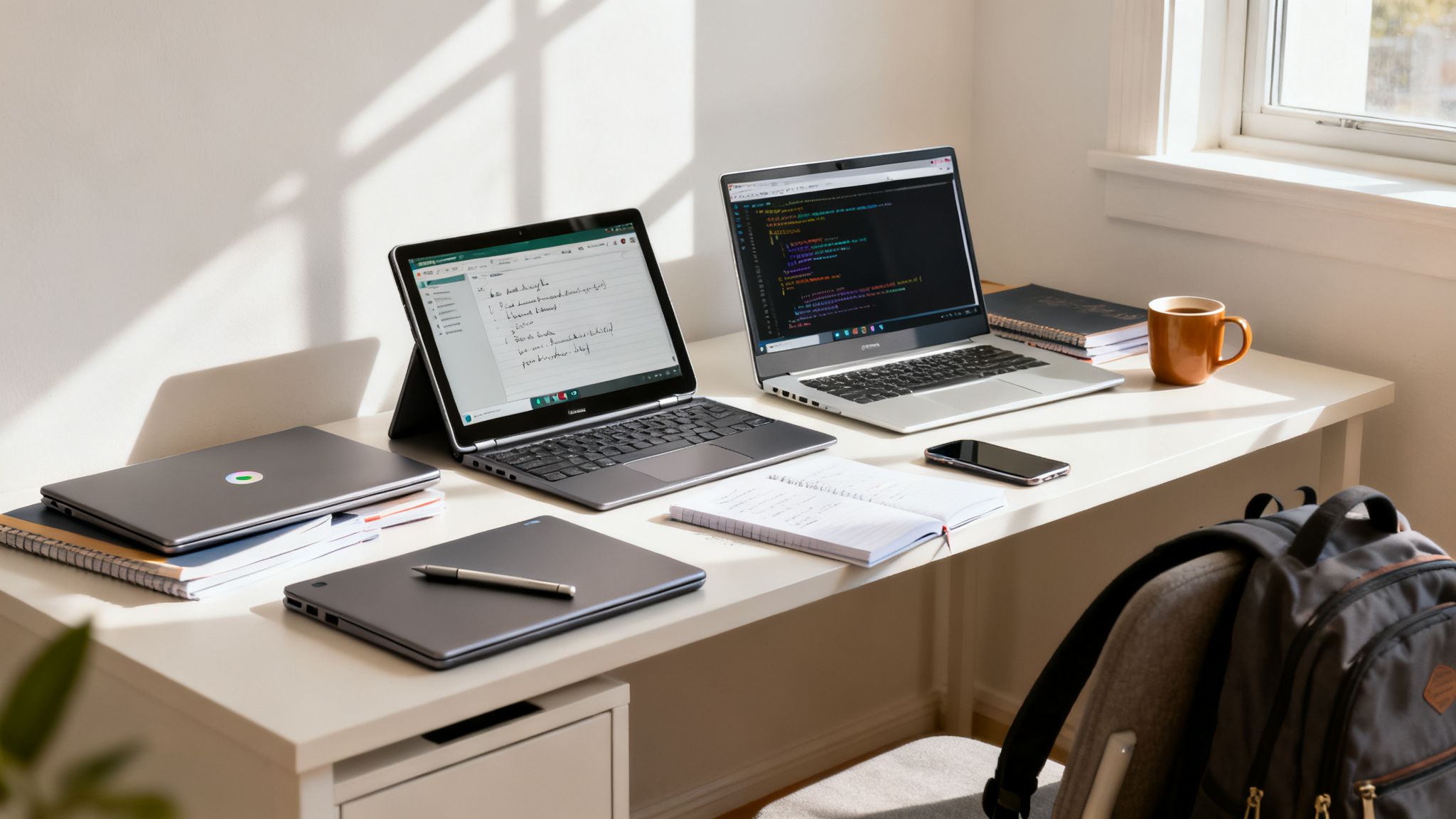
The best Chromebook for you really boils down to your specific major, how you study, and of course, your budget. A liberal arts major who spends most of their time researching and writing papers will have totally different needs than a computer science student who needs a machine that can handle coding.
The trick is to match the laptop's horsepower to your actual academic workload.
Why Chromebooks Are a Smart Choice for Student Life
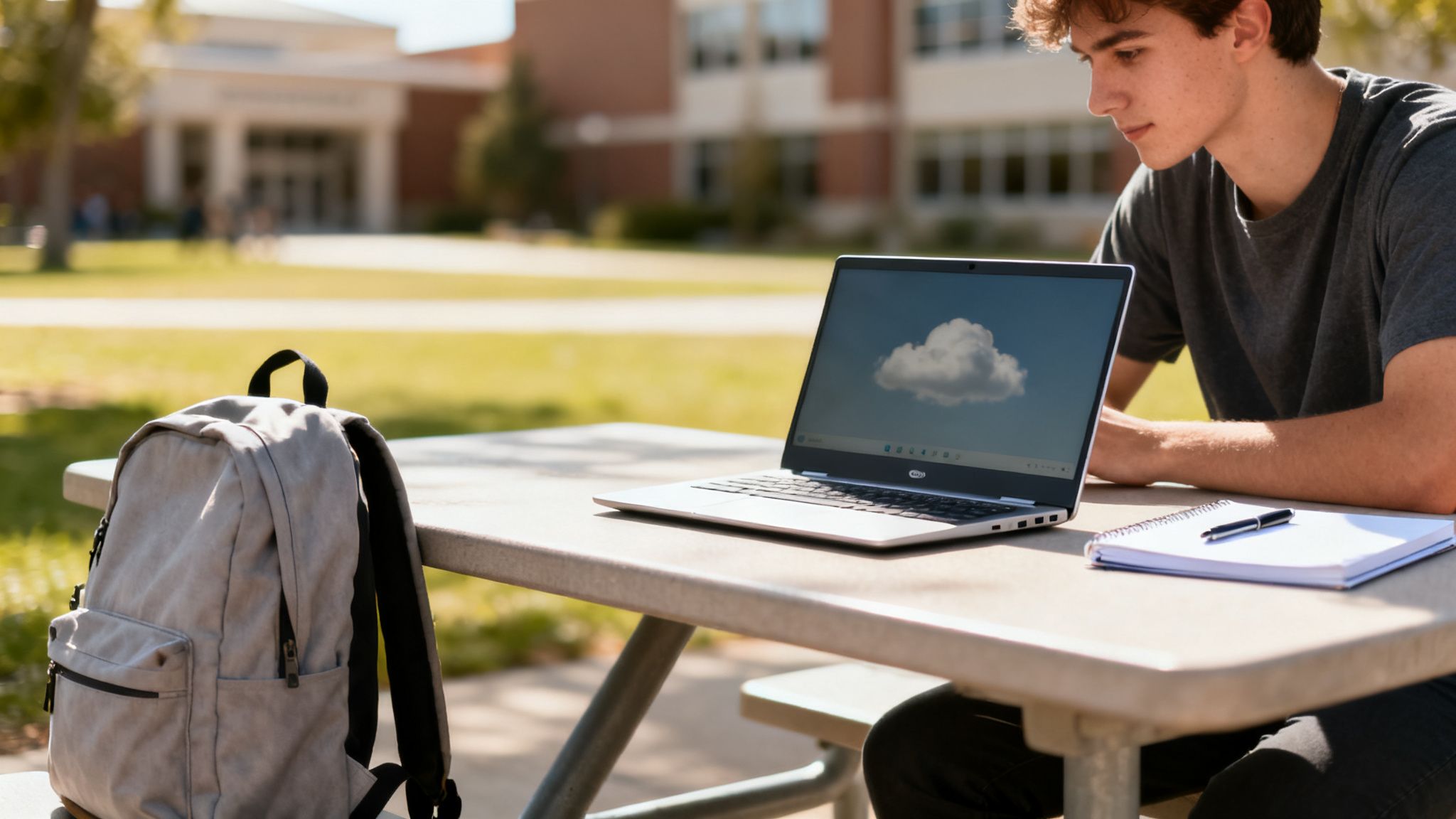
There’s a good reason Chromebooks have become a staple on university campuses. They run on ChromeOS, an operating system built from the ground up for simplicity, speed, and security. Forget about the bloatware and endless updates that can bog down traditional laptops; Chromebooks keep things lean and focused on the cloud.
This cloud-first approach is their secret sauce. Everything—your essays, notes, and settings—is automatically saved to your Google account. This means you can log into any Chromebook and pick up right where you left off, which is a lifesaver if your device gets lost or broken right before a big deadline.
Built for the Modern Classroom
The fact that so many schools have embraced Chromebooks says a lot. Globally, they now hold a whopping 60.1% of the education market share, with over 38 million of them in schools. It’s clear when you look at how educational institutions integrate technology that their simplicity and security are a perfect fit for learning.
Because they’re so common in education, you can be confident that pretty much any app or platform your uni uses will work perfectly on ChromeOS.
A few key advantages for students:
- Robust Security: With built-in virus protection and seamless automatic updates, you can spend less time stressing about malware and more time actually studying.
- Long Battery Life: Most models are designed to easily last a full day of lectures and library sessions on a single charge. No more hunting for a free power outlet!
- Affordability: Chromebooks offer incredible value, packing solid performance into a price point that won't destroy a student budget.
A Chromebook's real strength is its focus. It cuts out the distractions and streamlines web-based tasks, making it the perfect tool for research, writing, and collaboration—the absolute pillars of uni success.
Before we get into specific models, let's figure out what kind of student you are. Different degrees have different demands, and knowing your "profile" will help you find the right fit.
Which Chromebook Profile Fits You Best?
Use this table to quickly identify which Chromebook category aligns with your needs before diving into our specific model comparisons.
| Student Profile | Recommended Chromebook Type | Key Strengths | Typical Price Range |
|---|---|---|---|
| The Essay Writer | Budget Chromebook | Affordability, excellent keyboard, portability | $200 – $350 |
| The Multitasker | All-Rounder Chromebook | Balanced performance, more RAM, better display | $350 – $600 |
| The Digital Artist | 2-in-1 Convertible | Touchscreen, stylus support, flexible modes | $450 – $700+ |
| The STEM Major | Performance Chromebook | Faster CPU for Linux apps, more RAM & storage | $600+ |
Once you've identified which profile sounds most like you, it'll be much easier to narrow down the options and find the perfect Chromebook to get you through your degree.
Translating Tech Specs Into Academic Performance
Choosing the right Chromebook means looking past the price tag and getting to know the guts of the machine. The spec sheet can look like a different language, but figuring out what each part does is the key to matching a laptop to what you actually do in your classes. Let's decode the tech jargon into real-world performance.
Think of the CPU (Central Processing Unit) as your Chromebook's brain. It controls how fast your device can think and handle tasks, whether you're just opening a new tab or firing up a complex app.
For most students who are living in Google Docs, browsing the web for research, and streaming lectures, an Intel Celeron or MediaTek processor is more than enough horsepower. These chips are built for efficiency, which means they prioritize battery life—a lifesaver for long days on campus.
Processor Power for Different Majors
But if your degree involves some heavier lifting, you’ll need a more powerful brain. A computer science major planning to use the Linux environment for programming will find an Intel Core i3 or i5 absolutely essential for compiling code without staring at a loading screen in frustration.
The same goes for students using advanced web-based tools like Canva or Figma for design projects. A beefier CPU keeps everything running smoothly and responsively, not choppy and stuttering.
Next up is RAM (Random Access Memory), which is like your Chromebook's short-term memory. It holds all the apps and browser tabs you have open, letting you switch between them in a snap.
For today's student, 8GB of RAM isn't an upgrade; it should be the standard. Juggling a dozen research articles, running a plagiarism checker, listening to a lecture, and using a few Android apps all at once will bring a 4GB machine to its knees.
Sure, 4GB might get the job done for a high schooler or someone with a very light workload, but investing in 8GB is your best defense against slowdowns. It keeps your workflow smooth, which is non-negotiable during finals week.
Storage and Display: The Overlooked Essentials
When it comes to storage, not all types are made equal. You'll mainly see two kinds: eMMC and SSD.
- eMMC (embedded MultiMediaCard): You'll find this in most budget-friendly Chromebooks. It’s perfectly fine for storing documents and a handful of apps, but it’s noticeably slower than an SSD.
- SSD (Solid-State Drive): Found in mid-range and premium models, SSDs are way faster. This translates to a Chromebook that boots up in seconds and opens files and apps almost instantly.
Since ChromeOS leans heavily on the cloud, you don't need a massive amount of local storage. A 64GB eMMC drive is a decent starting point, but a 128GB SSD gives you a serious speed boost and more breathing room for offline files and Linux apps.
The display is what you'll be staring at for hours, so it's a huge deal for both your grades and your comfort. A Full HD (1920×1080) display is the absolute minimum you should look for. It makes text crisp and easy to read, and videos look sharp, which helps cut down on eye strain during those late-night study sessions.
A standard HD (1366×768) screen, which you'll often find on the cheapest models, can make text look pixelated and fuzzy—not great when you’re writing a long essay. Speaking of which, for those marathon writing sessions, you can polish your work by checking out a Grammarly student discount to ensure your writing is always top-notch.
Finally, don't forget about the parts you actually touch. A comfortable, backlit keyboard makes typing that 10-page paper a much better experience, while a responsive trackpad means you can navigate smoothly without needing to carry around an external mouse. These are the little details that separate a decent Chromebook from the best Chromebook for students.
Comparing the Best Chromebooks for Every Budget
Trying to find the right Chromebook can feel like a chore, but it really comes down to one thing: matching your budget to what you'll actually be doing in class. The "best" device isn't always the most expensive one; it's the one that gives you the most bang for your buck based on your major and study habits.
To make it simple, we've broken the options down into three straightforward tiers.
Think of it this way: each budget level is a trade-off. An essential model is all about affordability and getting the core jobs done. A premium machine, on the other hand, packs more processing power and a sturdier build for heavier lifting. Nailing down these differences is the secret to finding the best Chromebook for students without blowing your budget.
This image gives you a quick snapshot of the core specs you'll be looking at.
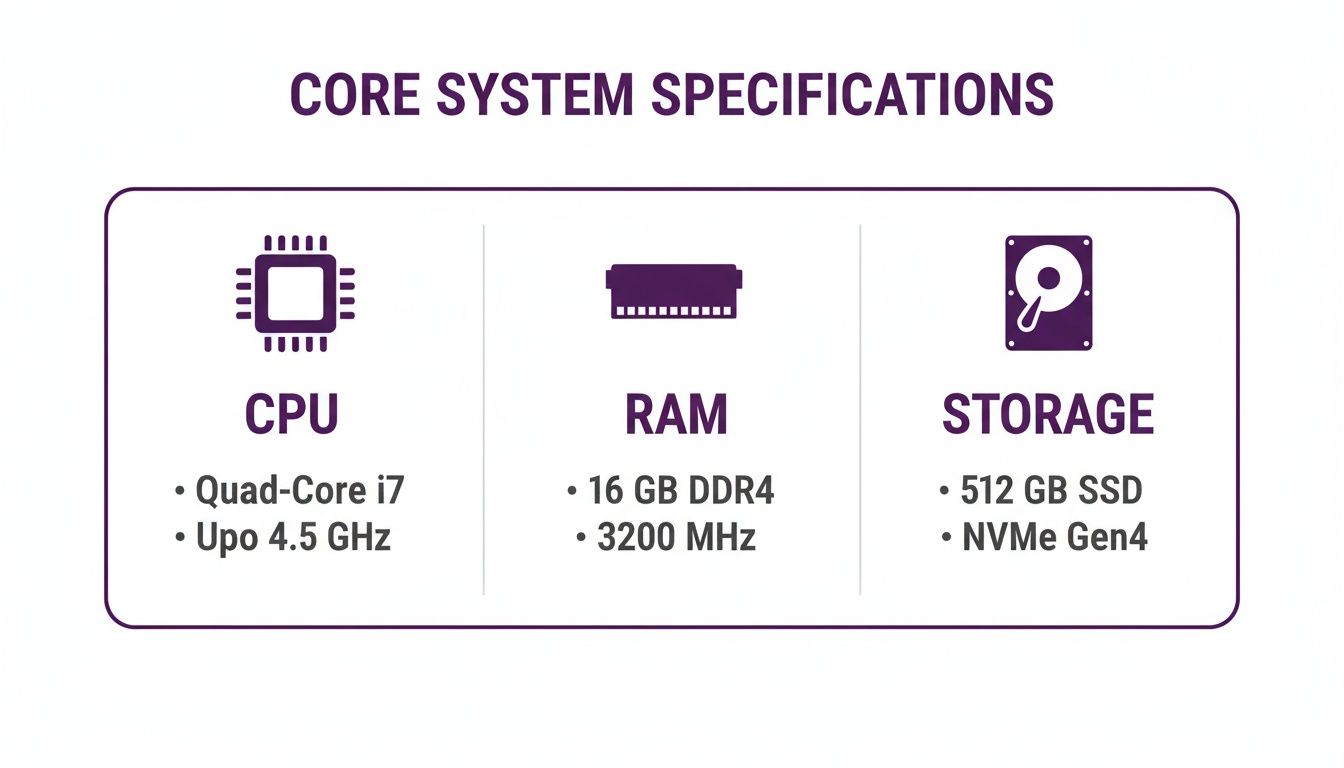
As you can see, the CPU, RAM, and Storage are the engine of your Chromebook. These three components directly dictate how fast it feels and how well it handles juggling multiple tasks at once.
The Essential Tier Under $350
Chromebooks in this price range are the true workhorses of student life. They’re built for one purpose: to handle core academic tasks reliably. If your days are filled with writing in Google Docs, researching online, and joining video lectures, this is your zone. You’ll usually find an Intel Celeron or MediaTek processor, 4GB of RAM, and 64GB of eMMC storage.
These specs won’t set any speed records, but they’re more than enough for a focused workload. A student hammering out an English paper can easily keep a dozen research tabs open alongside their Google Doc without a hitch. The main trade-off is multitasking power—try to run a few Android apps while streaming a lecture, and you’ll likely notice some lag.
Still, their sheer affordability is why Chromebooks are everywhere in education. The market, currently valued at a massive $4,593.8 million, is set to keep growing, mostly because these devices are just cheaper to own and maintain than traditional laptops. Big names like Lenovo are all in, recently shipping 3.5 million units to schools in just six months, which shows how much trust is in the platform.
Who is this for? The liberal arts, humanities, or social sciences student who lives in a web browser and a word processor. It's a fantastic, no-frills choice for getting the work done.
The All-Rounder Tier: $350 to $600
This is the sweet spot for most students. The mid-range tier offers a serious bump in performance and features without a crazy price jump. Here, an Intel Core i3 processor, 8GB of RAM, and a zippy 128GB SSD become the norm, and that upgrade makes a world of difference in daily use.
Imagine a business student juggling a Zoom lecture, a group spreadsheet in Google Sheets, and a presentation in Canva. With these specs, switching between apps is instant. The extra RAM means no stuttering, and the faster SSD ensures the device boots in seconds and opens files right away.
Models in this tier, especially from brands like HP, also tend to have nicer Full HD displays and feel more premium. If this sounds like the right fit, it’s worth checking out the HP student discount program to snag an even better deal.
Here’s what you get over the essential models:
- Buttery-Smooth Multitasking: 8GB of RAM is the new standard for a reason. It handles dozens of tabs and multiple apps without breaking a sweat.
- Noticeably Faster Speed: An SSD makes everything feel snappier, from startup to opening that massive PDF textbook.
- A Better View: Screens are usually brighter and sharper (Full HD), and many are touch-enabled, which is great for interacting with Android apps.
The Performance Tier: $600 and Up
Think of these Chromebooks as specialized tools for students with seriously demanding workloads. They start to blur the line with traditional high-end laptops, often packing Intel Core i5 processors, 8GB or even 16GB of RAM, and large, lightning-fast SSDs.
This is the go-to for a computer science or engineering student. The powerful processor is crucial for running the Linux development environment smoothly, letting them compile code in VS Code or run complex software without lag. All that RAM ensures resource-hungry applications and virtual machines work flawlessly, even with research tabs and Discord running in the background.
What do you gain? You're paying for raw power and future-proofing. These machines chew through any web-based task and are built to handle demanding Linux and Android apps, making them perfect for specialized STEM coursework.
Side-by-Side Chromebook Comparison for Students
To help you see the differences at a glance, this table breaks down our top picks across the criteria that matter most to students, from performance to portability.
| Model | Ideal For | Performance (CPU/RAM) | Display & Portability | Standout Feature | Price Point |
|---|---|---|---|---|---|
| Acer Chromebook Spin 311 | Budget-conscious students, note-taking | MediaTek/4GB | 11.6" HD Touchscreen, 2.31 lbs, Convertible (2-in-1) | Excellent battery life and rugged build | Under $350 |
| Lenovo Chromebook Duet 3 | Portability and tablet-first users | Snapdragon 7c Gen 2/4GB | 11" 2K Detachable, 1.14 lbs (tablet only) | Incredibly light with a sharp detachable screen | Under $350 |
| HP Chromebook x360 14c | All-rounders, multitasking, media consumption | Intel Core i3/8GB | 14" Full HD Touchscreen, 3.35 lbs, Convertible (2-in-1) | Premium build quality and a great keyboard | $350 to $600 |
| ASUS Chromebook Flip CX5 | Programming, creative work, demanding tasks | Intel Core i5/8GB | 15.6" Full HD Touchscreen, 4.3 lbs, Convertible (2-in-1) | Large screen and powerful processing | $600 and Up |
| Framework Laptop Chromebook Edition | STEM students, developers, future-proofing | Intel Core i5/16GB | 13.5" 3:2 High-Res Display, 2.87 lbs | Fully modular, repairable, and upgradable | $600 and Up |
Choosing the right device really just depends on being honest about what your day-to-day college life looks like. Don't pay for power you'll never use. An essential Chromebook is a brilliant tool for writing and research, while an all-rounder gives most students the perfect blend of performance and price. Only jump to the performance tier if your major truly requires that extra horsepower.
Finding the Right Chromebook for Your Major
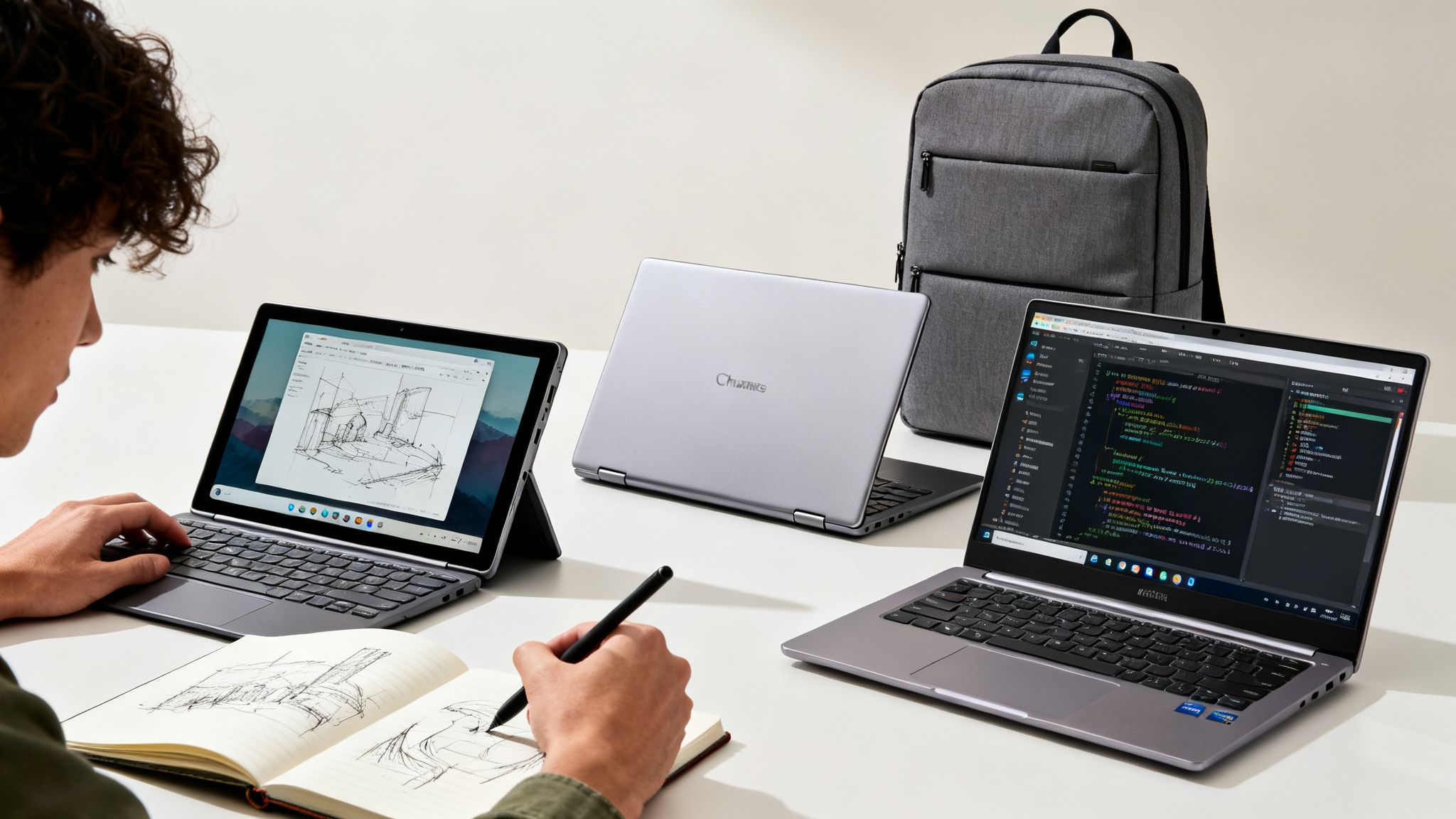
A generic, one-size-fits-all laptop just doesn't cut it when your coursework starts getting serious. The real magic of the Chromebook market is just how diverse it is, with specialised devices that feel like they were made for certain fields of study. Finding the best Chromebook for students isn't about getting the most expensive one; it's about matching the machine to what your major actually demands, whether that's compiling code or sketching designs.
Let’s be real, a history major’s daily grind is worlds apart from an engineering student’s. Your Chromebook should reflect that difference. By homing in on your specific needs, you can put your money towards features that will genuinely help you learn, instead of shelling out for extra power you'll never even touch.
For the Digital Note Taker and Artist
If your days are filled with jotting down notes, sketching diagrams, or creating digital art, a 2-in-1 convertible Chromebook is basically non-negotiable. These things are the ultimate multitaskers, giving you a tablet's portability and a laptop's keyboard. They're perfect for creative and hands-on courses. The key is to find one with a great touchscreen and solid USI (Universal Stylus Initiative) stylus support for that natural pen-on-paper feeling.
Imagine you're an architecture student. You could prop the Chromebook up in tent mode to show off designs to your study group, then flip it into tablet mode to sketch out new ideas right on the screen during a lecture. A precise stylus is everything here—it lets you make detailed notes on PDFs, draw accurate lab diagrams, or create layered illustrations for a graphic design class.
For majors like design, art, or any field where you'd be handwriting notes, a 2-in-1 Chromebook with a good stylus isn't just a cool gadget. It's a core tool for getting your creative work done.
For the Student Constantly on the Move
Is your campus life a constant sprint between classes, the library, and study groups in different buildings? Then portability is your top priority. This is where ultra-lightweight Chromebooks with insane battery life are absolute lifesavers. These machines are built to be tossed in a backpack and carried all day, usually weighing under 3 pounds.
The biggest advantage here is freedom. A journalism student can run around campus conducting interviews, type up notes in a coffee shop, and file their story from the library without ever panicking about finding a power outlet. You’ll want to look for models that promise 10+ hours of real-world battery life, making sure your laptop can outlast even your longest day of back-to-back lectures.
For the STEM and Programming Student
Majors in science, technology, engineering, and math (STEM) have some of the heaviest workloads, period. You're running complex calculations, firing up specialised software, and writing code—tasks that demand way more muscle than just browsing the web. For these students, a performance-focused Chromebook is the only way to go.
These machines are kitted out with beefier processors, like an Intel Core i3 or i5, and typically come with 8GB of RAM or more. That hardware is crucial for smoothly running the integrated Linux container, which is a game-changer. It lets you install and use proper desktop development tools like Visual Studio Code, GIMP, and different programming languages right on ChromeOS.
A computer science student, for example, can compile complex code in their Linux environment while having a dozen browser tabs open for research and collaborating on a group project. That extra power and memory mean no frustrating lag to kill your momentum. It turns a simple Chromebook into a legitimate coding machine, making it a surprisingly powerful and affordable choice for technical fields.
The education world is all-in on Chromebooks, so you know they’ll keep getting great software support. In one recent year, schools bought 12 million units, and that number hit 11 million in just the first half of the next. You can dig into more data on Chromebook market growth, which really shows how stable and reliable this platform is for students.
How to Find the Best Student Chromebook Deals
Scoring the perfect Chromebook is half the battle; getting it for the right price is what really seals the deal. The good news is your student ID is basically a golden ticket for savings, but you have to know where to cash it in. With a bit of smart shopping and good timing, you can snag a great machine without emptying your wallet.
The most straightforward path to a discount is hitting up the official education stores. Big names like HP, Acer, and Samsung all have special online portals just for students. We're not talking about a few bucks off, either—these are often serious markdowns you won't find anywhere else. Usually, all it takes is a quick verification with your student email.
Timing Your Purchase for Maximum Savings
Beyond the standard student discounts, timing is everything. The best deals pop up around key times in the academic calendar, so a little patience can pay off big time.
- Back-to-School Season (July-September): This is the Super Bowl of student tech deals. Retailers are all fighting for your business, which means deep discounts, free accessories, and other sweet promotions.
- Black Friday & Cyber Monday (November): It’s a free-for-all, but that’s a good thing. Chromebooks are always a hot item during these massive sales, and you can often find some of the lowest prices of the year.
- End-of-Year Sales (December-January): As retailers clear out last year's models to make room for the new stuff, you can find some absolute steals. It’s a perfect window for a great deal.
If you can line up your purchase with one of these sales events, you can often stack savings on top of your student discount. That's how you get the absolute best price on the best chromebook for students.
Unlocking Extra Value with Refurbished Models and Discounts
Don't sleep on the certified refurbished market. Reputable spots, like a brand’s own outlet store or trusted retailers, offer devices that have been professionally checked, fixed up, and are guaranteed to work like new. They almost always come with a warranty and can save you a huge chunk of cash.
A certified refurbished Chromebook can give you the power of a mid-range model for the price of a budget one. It’s one of the smartest ways to make a tight student budget work harder without sacrificing quality.
Finally, keep an eye out for specific brand promotions. A lot of manufacturers run student programs that offer more than just a simple price cut—think extended warranties or free software. For a better idea of what to look for, check out guides that break down specific offers, like this one covering the Lenovo student discount.
By combining these strategies—shopping direct, timing your buy, and hunting for every available discount—you’ll be making a smart, budget-friendly investment that will pay off all semester long.
Got Questions About Chromebooks for School? We've Got Answers.
Choosing a new laptop for uni always brings up a ton of questions. If a Chromebook is on your radar, you’re probably wondering how it really stacks up against a traditional laptop for your classes, software needs, and maybe even a little downtime.
Let's cut through the noise and tackle the biggest concerns students have.
One of the first things everyone asks is whether a Chromebook can genuinely replace a Windows or Mac laptop. For the vast majority of students, the answer is a big yes. Modern Chromebooks are seriously capable machines built for the web-first world we all live and study in.
Most of your university work—researching, writing essays, collaborating on Google Docs, and uploading assignments—happens in a web browser anyway. This is exactly where Chromebooks shine, giving you a fast, secure, and simple environment to just get stuff done.
Can I Use Microsoft Office on a Chromebook?
This is a huge one, and the good news is, you absolutely can. While you can't install the classic desktop versions of Word, Excel, or PowerPoint, you have a couple of fantastic options that work perfectly.
Most students find the web versions of Microsoft 365 have everything they need. You can access and edit all your documents right in the browser, and for core tasks like writing reports or building presentations, the experience feels almost identical to the desktop apps.
You can also download the Android versions of the Microsoft Office apps straight from the Google Play Store. They’re designed for touchscreens but work great with a keyboard and mouse, giving you another solid way to stay productive.
The bottom line is simple: if your uni life runs on Microsoft Office, a Chromebook has you covered. The web and Android app solutions are seamless and sync perfectly with cloud storage like OneDrive.
What’s This “Auto Update Expiration (AUE)” Date All About?
Every single Chromebook has an Auto Update Expiration (AUE) date, and it’s something you definitely need to know about. This is the official cutoff date when Google stops sending automatic software updates—including new features and critical security patches—to that specific model.
For newer models, Google promises updates for up to 10 years, which is an incredible commitment to long-term security. The AUE date is tied to the device's hardware platform, not when you buy it. This is super important to check, especially if you’re eyeing an older or refurbished Chromebook.
You can easily look up the AUE date for any model on Google's official support page. Knowing this date ensures your laptop will stay secure and up-to-date for your entire degree.
Can I Run My Specialised Course Software?
This is where you need to do a little homework. For most degrees in humanities, business, or social sciences, a Chromebook will handle everything you throw at it. But for some specific STEM or creative fields, you’ll need to double-check.
If your course demands specific desktop software that only runs on Windows or macOS—think advanced engineering programs or the full-blown Adobe Creative Suite—a Chromebook might not be the right primary machine for you. That said, things are changing fast.
Here’s how Chromebooks are closing the gap:
- Linux Support: Many powerful Chromebooks can run a Linux environment. This is a game-changer for computer science students, allowing you to install proper development tools like VS Code, GIMP, and a whole range of programming languages.
- Powerful Web Apps: The web is catching up. Tools like Figma for design, Canva for graphics, and countless online code editors are just as capable as their desktop cousins.
- Remote Desktops: Your university might offer remote access to campus computers. This means you can log into a powerful PC from your Chromebook and use whatever specialised software you need, right from your dorm room.
What About Gaming and Creative Stuff?
Let's be real here. A Chromebook isn't built to be a beastly gaming rig that runs the latest AAA titles on its own. That’s just not its purpose.
But that doesn't mean game over. Cloud gaming services like NVIDIA GeForce NOW and Xbox Cloud Gaming run brilliantly on Chromebooks. As long as you have decent internet, you can stream and play seriously demanding games without needing a powerhouse laptop.
It's a similar story for creative work. You won't be running Adobe Premiere Pro, but web-based and Android apps are surprisingly good. You can edit videos in apps like CapCut, create awesome graphics in Canva, or even produce music with online tools. For most student projects, these are more than enough. The best Chromebook for students is one that fits this modern, cloud-based way of working and playing.
Ready to find the perfect device and score an amazing deal? Student Wow Deals is your go-to source for exclusive discounts on laptops, software, and everything else you need for school. Check out the latest offers and start saving today at https://studentwowdeals.com.